How do you share a work schedule with employees who will not use an app?
By Al Davies · Updated November 3, 2026
Short answer: Put the schedule on a page staff can reach with no download and no account: a printed copy on the wall, plus a link or QR code for phones. Use the group text only to say that it is posted.
Why do some staff refuse a scheduling app?
- Part-time and seasonal staff do not want another account for a short job.
- Some staff share a phone or have little storage space.
- Notifications that do not arrive make staff stop trusting the app.
- Some staff have no work email address.
None of this means the staff are difficult. It means the schedule has to reach people where they already are: the wall at work and the camera on their phone.
What are your options?
| Method | Staff need | Weak point |
|---|---|---|
| Printed copy on the wall | Nothing | Staff must visit the site; a change means a new print |
| PDF or photo by email | An email address | Old copies stay in inboxes |
| Spreadsheet link | A link and a browser | Anyone with the link may edit if you set it wrong |
| Group text | A phone number | The schedule gets buried in chat |
| Web page with QR code | A phone camera | You need a tool that makes the page |
Pick the method your least technical employee can use. If one person cannot use it, the schedule is not shared.
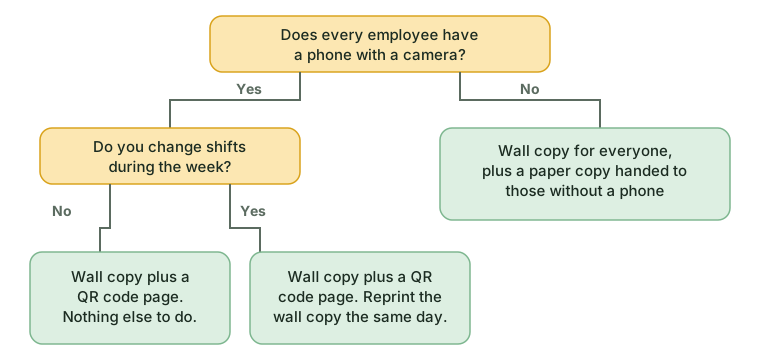
How do you roll it out to staff with no app?
- Ask each person how they check things on their phone, and note anyone with no smartphone.
- Print the week and pin it where staff start their shift.
- Show each phone user the link or QR code once, in person.
- Hand a paper copy to anyone without a phone.
- When a shift changes, replace the wall copy the same day.
Tip: Check the wall copy before each shift change. Staff trust whatever they saw last.
What does the announcement look like?
Next week's schedule is posted.
Paper copy: break room board.
Phone: point your camera at the QR code on that page.
Nothing to download.
How does ShiftGarden handle this?
ShiftGarden is built for staff who will not install anything. You print the week by role for the wall, and the page carries a QR code. Each person also gets a QR card and a 5-character code that opens their own shifts. Nobody needs an email address, an app or an account. It works in English and Spanish. See how ShiftGarden works.
If your team still gets the schedule through chat, see how to stop sending the schedule in the group text.
FAQ
Can staff without a smartphone still see the schedule?
Yes. Keep the printed copy on the wall and hand a copy to anyone who asks.
Do staff need an email address to get the schedule?
No, not for a wall copy or a QR code page. Only the PDF-by-email method needs one.
How do staff know when the schedule changed?
Swap the wall copy the same day and send one short text saying it changed.
Related guides
- How to Move Your Work Schedule Out of the Group Text
- Horario de trabajo para empleados: cómo hacerlo
- Work Schedule Maker: What to Look For and How to Use One
- Sync a Work Schedule to Google Calendar in 5 Steps
Try ShiftGarden to put your week on one page.